
- Filters/Actions For Post
- Spectra Patterns
- Contact Form 7: Checkbox / Radio / Acceptance Control
- Getting Started With Spectra
- WP – Search
- Create Contact Forms
- Import Single Pages, Templates, & Block Patterns
- Assets API For Third-Party Plugins
- Copy & Paste Style
- Load Google Fonts Locally
- Blocks Editor Spacing
- Translate Everything WPML
- Collapse Panels
- Site Visibility
- Spectra Actions: Clear Cache
- Quick Action Bar
- Custom Blocks
- Move Block Patterns
- Move Title Bar To Top
- Newsletter Forms
- Register High-Privileged Users
- User Roles Access To AI
- Whitelist Email Address
- Hide Core Blocks
- Regenerate Assets With Code
- Using ACF Repeater Field in Spectra
- How to Fix Stretched Spectra Images in WordPress 6.7
- How to Change Breakpoints in Spectra?
- Controlling Access to the Spectra Design Library Based on User Roles
- Multi-Column Form Block Using Utility Classes
- Preview Options (Desktop, Tablet & Mobile)
- Troubleshooting: Missing Icons
- Contact Form 7: Multiple Column Fields
- Unable To Style Contact Form 7
- Tab Index For Multiple Gravity Forms
- Manually Install Spectra Via FTP
- Enable/Disable Design Library Button
- Update Folder File Permissions
- Resolving Container Layout Conflicts
- Database Update Instructions (Below 2.0.0)
- Transparent / Sticky Header
- Change Site Logo
- Change Global Styles
- Disable Title on Posts & Pages
- Transparent / Sticky Header For Single Page / Post
- Change Header & Footer Patterns
- Custom / Google Fonts
- Reset Global Default Styling
- Manually Install Spectra One Via FTP
- Enable / Disable Header & Footer On Specific Pages / Posts
How To Hide Spectra Core Blocks In Your Block Editor
Spectra provides an easy way to customize your editing experience by allowing you to hide the core blocks that you don’t need while working on your website.
This is particularly useful if you want to simplify the block editor by focusing only on the blocks you use most frequently.
How To Hide Spectra Core Blocks
Here’s how you can hide the Spectra core blocks in your editor:
- Open any page or post where you want to edit content.
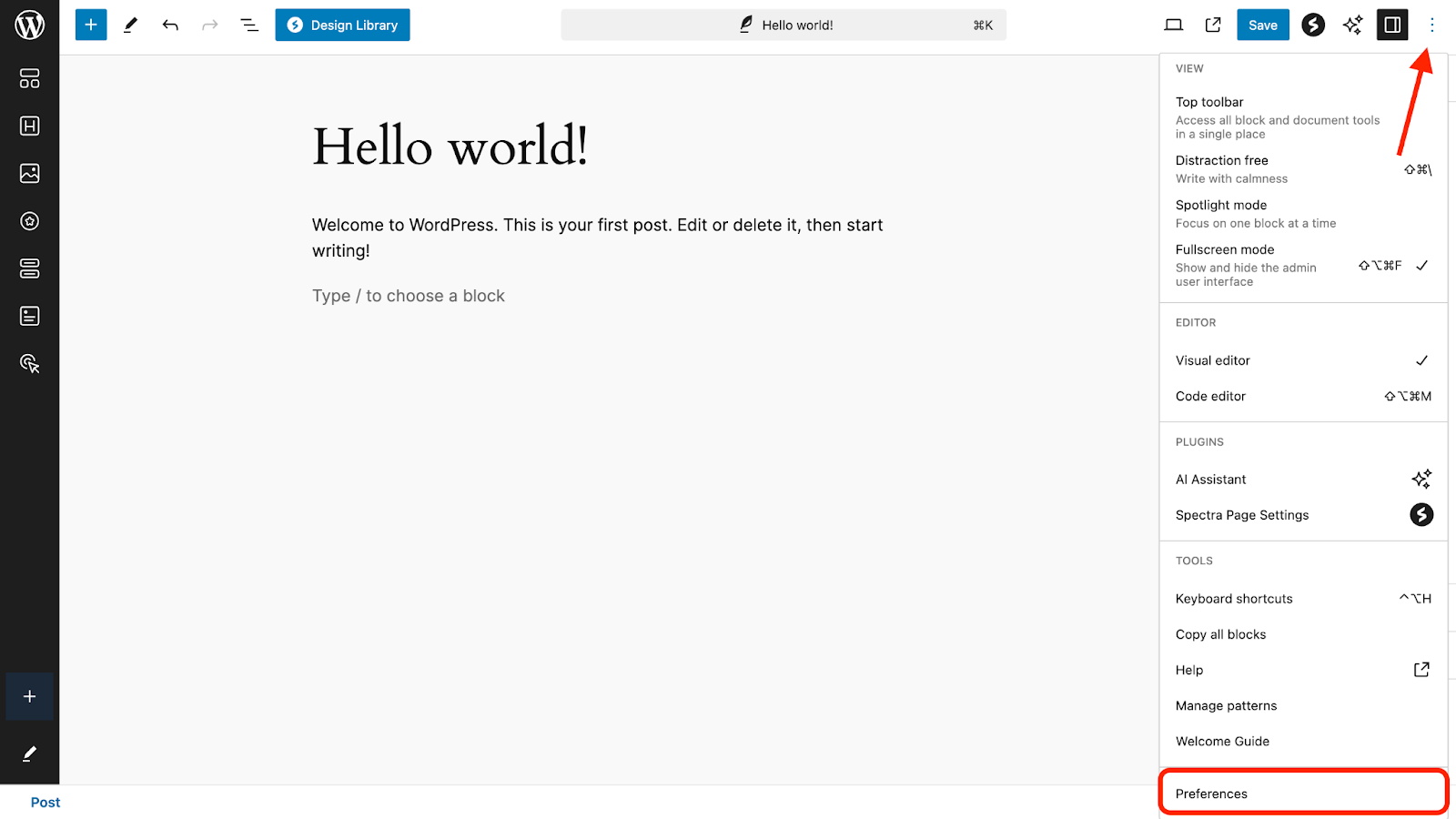
- On the top-right corner, click the three-dot icon and click on Preferences.
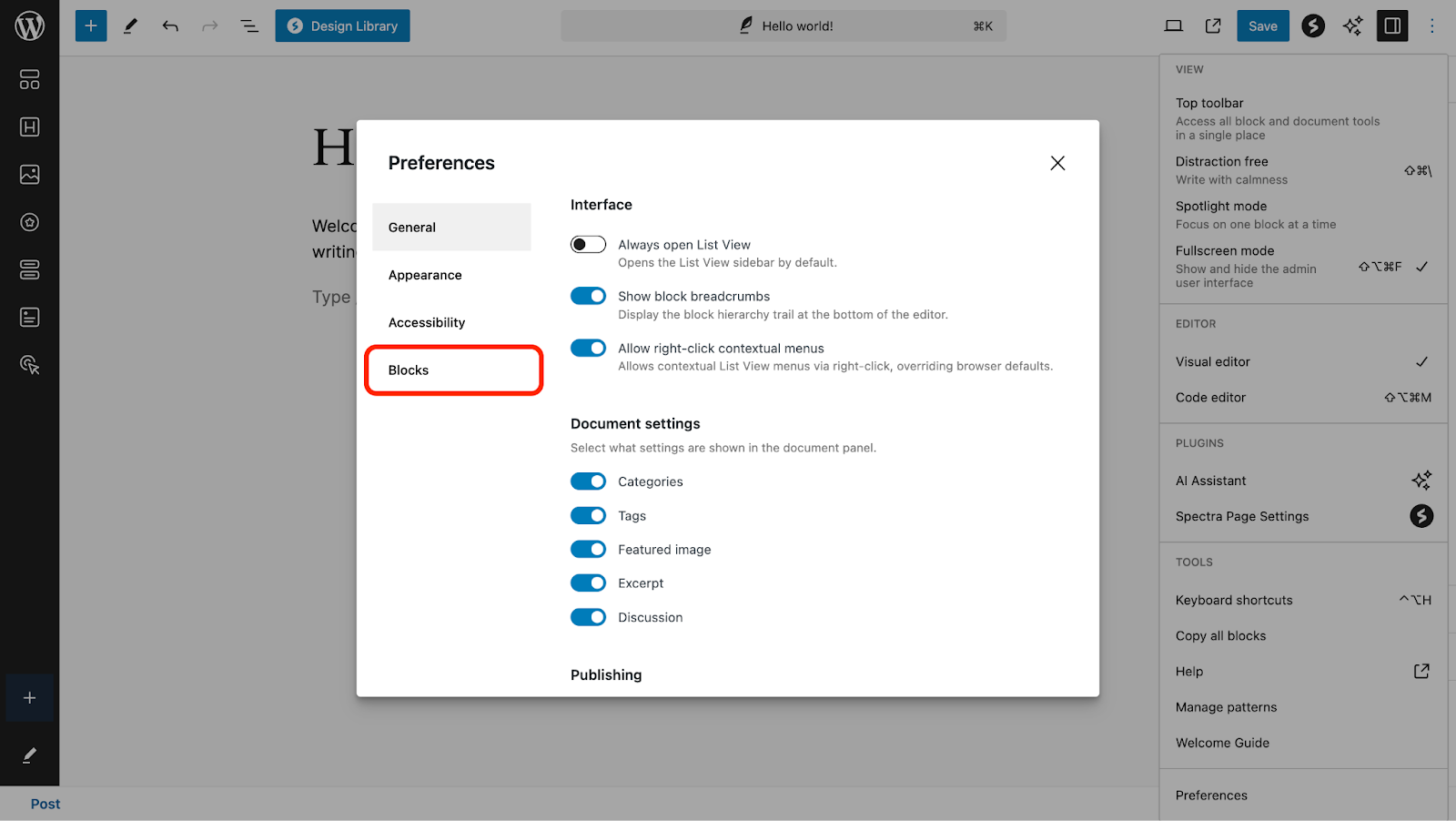
- Access the Blocks tab on the next popup.
- Here, uncheck the Spectra blocks you don’t want to see in your block library. You can even search for the blocks that you want to uncheck.
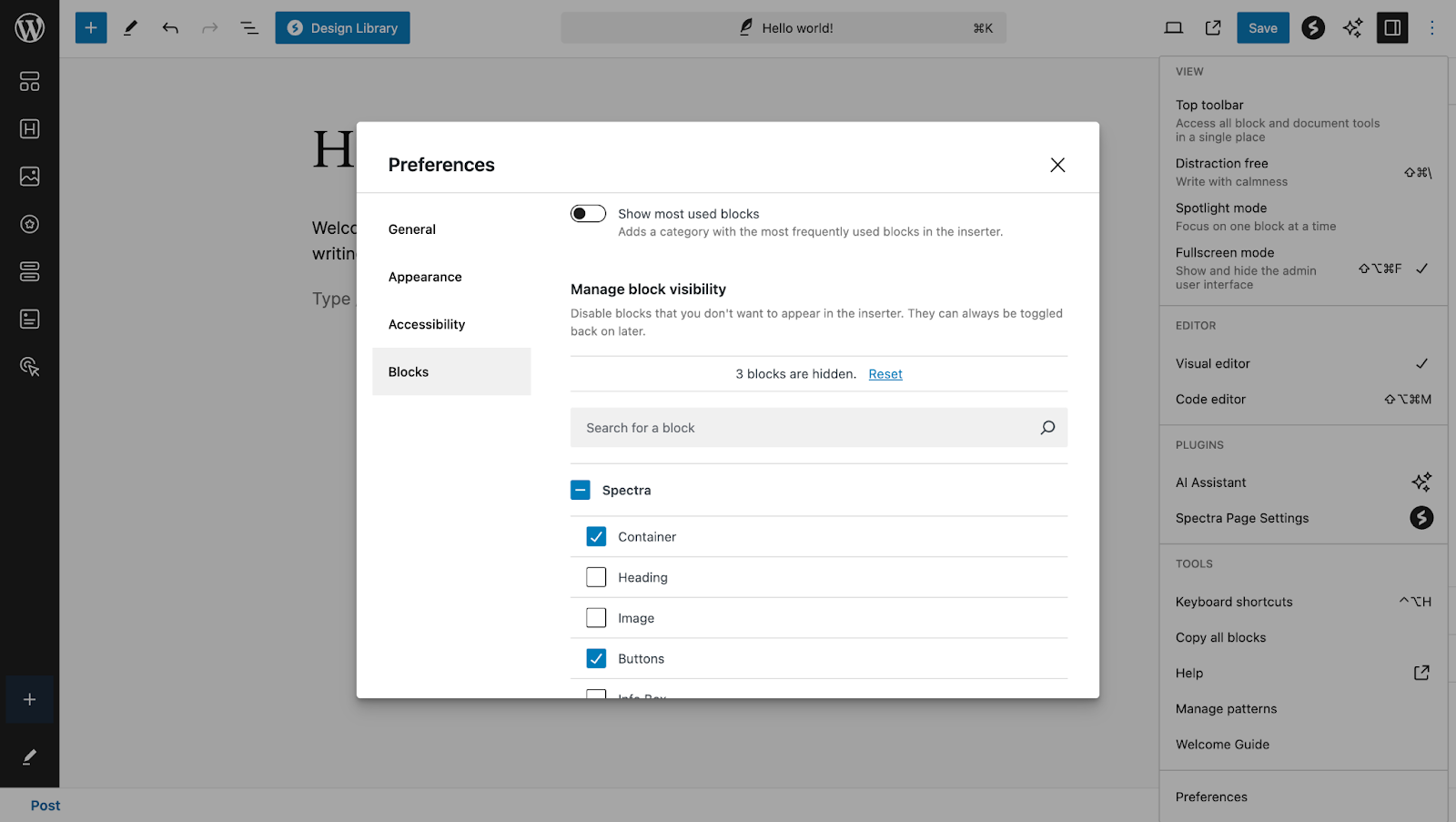
Once you’ve unchecked the blocks, close this popup. The hidden blocks will no longer appear in the block editor.
Restoring Hidden Blocks In Spectra
If you need to restore any hidden blocks, follow the same steps above and recheck the blocks that you want to make visible again in your editor.
If you want to restore all of your hidden blocks, click on the Reset option here.
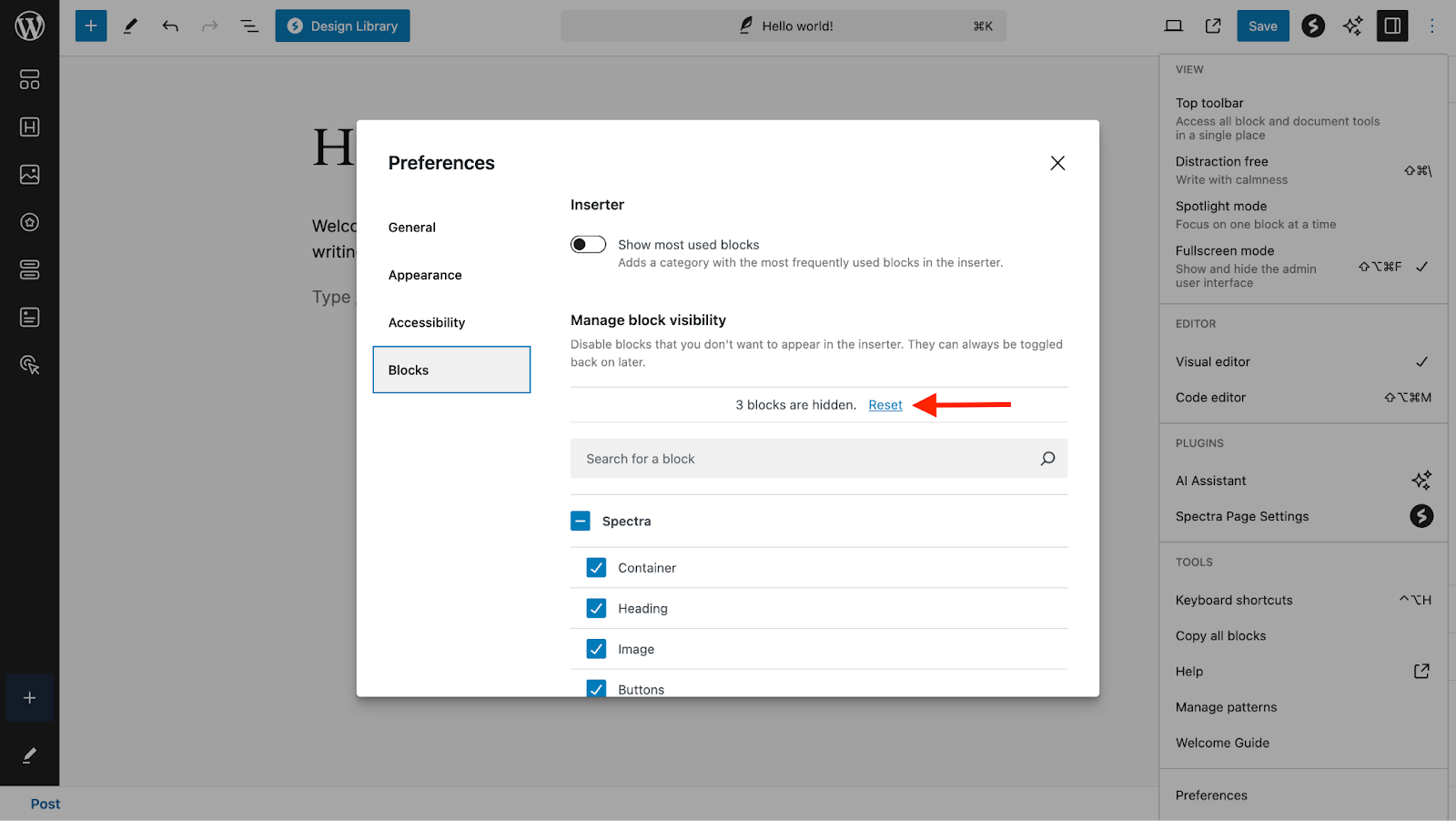
That’s all! We hope this article helps you. If you have any questions, feel free to contact our support team.
We don't respond to the article feedback, we use it to improve our support content.